ip
BitBot User Guide
Product Overview
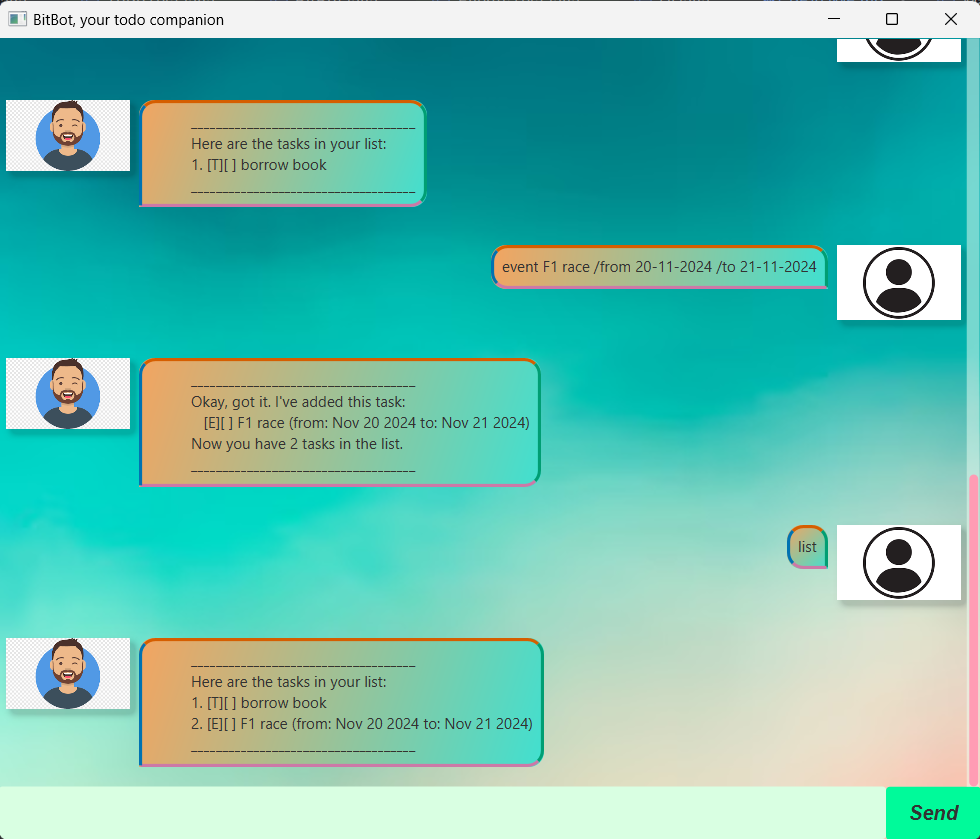 BitBot is a task management application designed to help the users to
organise the tasks and keep track of the remaining tasks that needs to be done.
There are three main tasks that can be added.
BitBot is a task management application designed to help the users to
organise the tasks and keep track of the remaining tasks that needs to be done.
There are three main tasks that can be added.
- Todo
- Add a simple task with only a description.
- Deadline
- Add a task with a description with a deadline by.
- Event
- Add a task with a description with a starting time and an ending time.
[TIP] Good news!!! The deadlines can be written in four formats as well which boosts usability. - Date and time format (e.g. 21-09-2024 18:00) - Date format (e.g. 21-09-2024) - Time format (e.g. 18:00) - Or even a string! (e.g. tomorrow, today)
- Add a task with a description with a starting time and an ending time.
Once these tasks have been created, the user can use one of the following to interact with the application bot.
| Commands | Description |
|---|---|
| mark | Marks the file as done |
| unmark | Marks the file as not done |
| delete | Deletes the task from the list |
| find | Finds any task that is similar to the input of the user |
| tag | Tags a task with the user’s input |
| untag | Untags a task |
| list | Lists all the tasks that are present |
| bye | Exits the application |
Enjoy using the application bot and hope BitBot makes your ever-increasing workload and to-do lists easier to manage and control so that you can take a step back and worry less and enjoy life!
Adding Todo
You can add a Todo to your task list by typing the following command:
Example: todo return book
The command will add a todo task with the specified description.
________________________________
Okay, got it. I've added this task:
   [T][] return book
Now you have 1 task in the list.
________________________________
Adding Deadline
You can add a deadline to your task list by typing the following command:
Example: deadline return book /by 21-09-2024 18:00
The command will add a deadline task with the specified description and the due date and time.
________________________________
Okay, got it. I've added this task:
   [D][] return book (by: Sep 21 2024 18:00)
Now you have 2 tasks in the list.
________________________________
Adding Event
You can add an Event to your task list by typing the following command:
Example: event return book /from 21-09-2024 18:00 /to 21-09-2024 19:00
The command will add a deadline task with the specified description and the due date and time.
________________________________
Okay, got it. I've added this task:
   [E][] return book (from: Sep 21 2024 18:00 to: Sep 21 2024 19:00)
Now you have 3 tasks in the list.
________________________________
Tag & Untag command
BitBot allows the users to tag & untag their tasks respectively. Albeit filtering and other commands are not implemented yet, tagging allows the users to identify the tasks they would like to tag.
Example: tag 2 #URGENT
The command will tag the corresponding task that is mentioned as the index.
________________________________
Nice! I've tagged this task:
   [D][#URGENT][] return book (by: Sep 21 2024 18:00)
with #URGENT
________________________________
Example: untag 2
The command will untag the corresponding task that is mentioned as the index.
________________________________
Okay, I've untagged this task:
   [D][] return book (by: Sep 21 2024 18:00)
________________________________
Mark command
BitBot allows the users to mark their tasks as done.
Example: mark 1
The command will mark the corresponding task that is mentioned as the index.
________________________________
Yay nice! I've marked this task as done:
   [T][X] return book
________________________________
Unmark command
BitBot allows the users to mark their tasks as done.
Example: unmark 1
The command will unmark the corresponding task that is mentioned as the index.
________________________________
Okay, I've marked this task as not done:
   [T][] return book
________________________________
Delete command
BitBot allows the users to delete their tasks.
Example: delete 1
The command will delete the corresponding task that is mentioned as the index.
________________________________
Alright noted. I've removed this task:
   [T][] return book
Now you have 2 tasks in the list.
________________________________
Find command
BitBot allows the users to find anything that is similar to the input. It can also find relevant tasks when the user does not key in the full word.
Example: find boo
The command will find all the tasks that has a similar string or substring.
________________________________
Here are the matching tasks in your list:
1. [D][] return book (by: Sep 21 2024 18:00)
________________________________
List command
BitBot allows the users to list all the tasks that are stored in the list.
Example: list
The command will list all the tasks.
Bye command
This exits the program.
Example: bye